Stories & Panels
Stories are scrollable narratives built around your objects. Each story guides your audience through a sequence of steps — focusing on specific regions of images, moments in videos, or segments of audio recordings — with question-and-answer pairs and expandable detail panels.
The Compositor’s story editor provides a visual alternative to editing story spreadsheets directly. You can build and reorder steps, set coordinates, and preview your story without leaving your browser.
How the scroll experience works
A story fills the viewport. The object, whether an image in the IIIF viewer, a video player or an audio player, fills the entire background, and as you scroll the text cards pass over it one after another, rather than stacking.
The scroll is continuous with magnetic waypoints. Rather than jumping discretely from step to step, viewers scroll naturally through the story. The view snaps magnetically to each step, ensuring the text card and object position stay in sync.
On phones and tablets held upright, the text card is anchored to the bottom of the screen, over the lower part of the object.
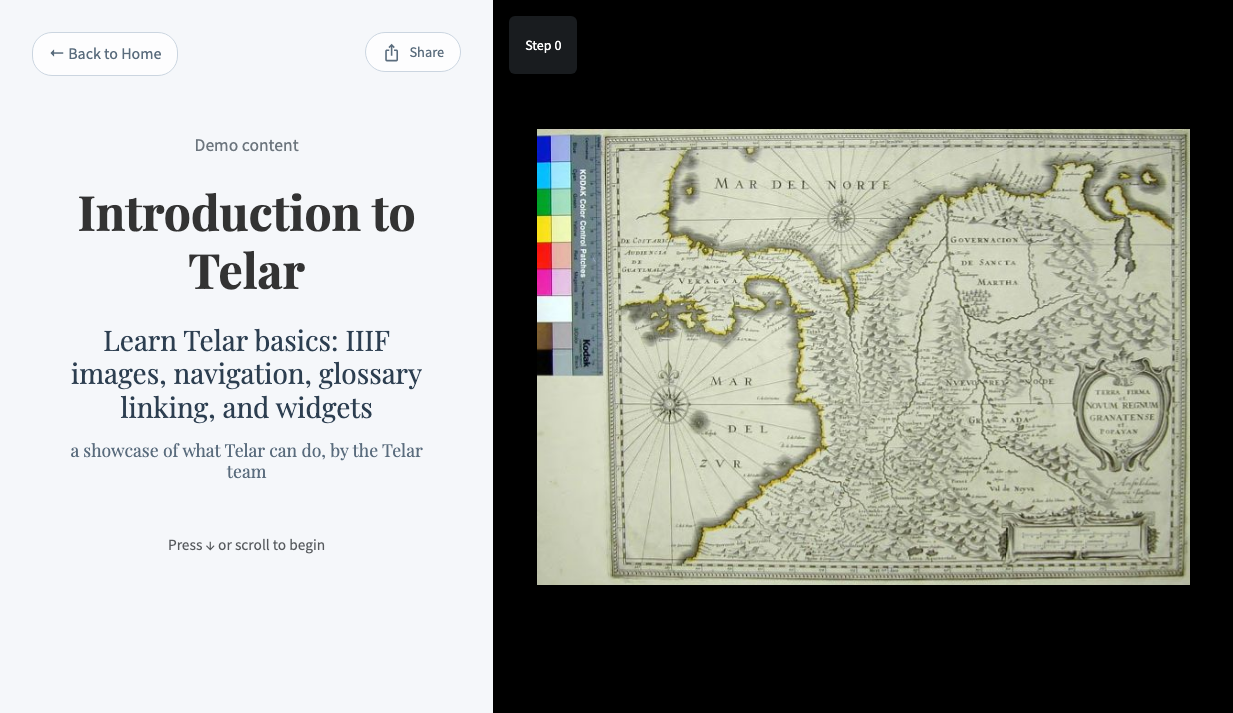
Each step:
- Focuses on a specific part of an object (using x, y, and zoom coordinates for images, or clip times for video and audio)
- Displays a question and a brief answer in the text card
- Optionally offers up to two layers of additional detail via expandable buttons
Registering stories
Before building a story’s steps, register it in project.csv:
order,story_id,title,subtitle,byline
1,colonial-textiles,Colonial Textiles,Weaving traditions of the Americas,by Dr. Jane Smith
The story_id determines the filename for the story CSV and its URL. With story_id: colonial-textiles, Telar looks for telar-content/spreadsheets/colonial-textiles.csv and serves the story at /stories/colonial-textiles/.
If you omit story_id, Telar uses story-{order} (e.g., story-1.csv for order 1).
See the CSV Reference: Project for all project.csv columns.
Building story steps
Each story has its own CSV file in telar-content/spreadsheets/. The file defines steps in sequence:
step,object,x,y,zoom,question,answer,layer1_content
1,textile-001,0.5,0.3,0.8,What is this textile?,A colonial fragment showing complex weaving patterns,This fragment dates to the mid-17th century...
2,textile-001,0.2,0.7,0.4,What does this pattern mean?,An interlocking warp design used in ceremonial cloths,The pattern has been identified as...
3,map-lima,0.5,0.5,1.0,Where were these textiles found?,In the historic center of Lima,Archaeological excavations in the 1990s...
Required fields
Every step needs:
step— Sequential number (1, 2, 3…) with no gapsobject— Anobject_idfrom your objects spreadsheet. Leave empty to create a title cardx,y,zoom— The step’s framing (see below). Ignored for title cardsquestion— The heading displayed in the text cardanswer— A brief answer shown below the question
Coordinates
Coordinates tell the viewer where to focus for each step. x and y run from 0 to 1:
- x — Horizontal position. 0 = left edge, 0.5 = center, 1 = right edge
- y — Vertical position. 0 = top edge, 0.5 = center, 1 = bottom edge
- zoom — Zoom level. 1 shows the whole object. Higher values move closer to the point at
xandy: 2 shows about half as much of the object. That point is in the middle of the view, except near an edge, because the view does not go past the edge of the object. Below 1, down to 0.1, the whole object is shown smaller and centered.
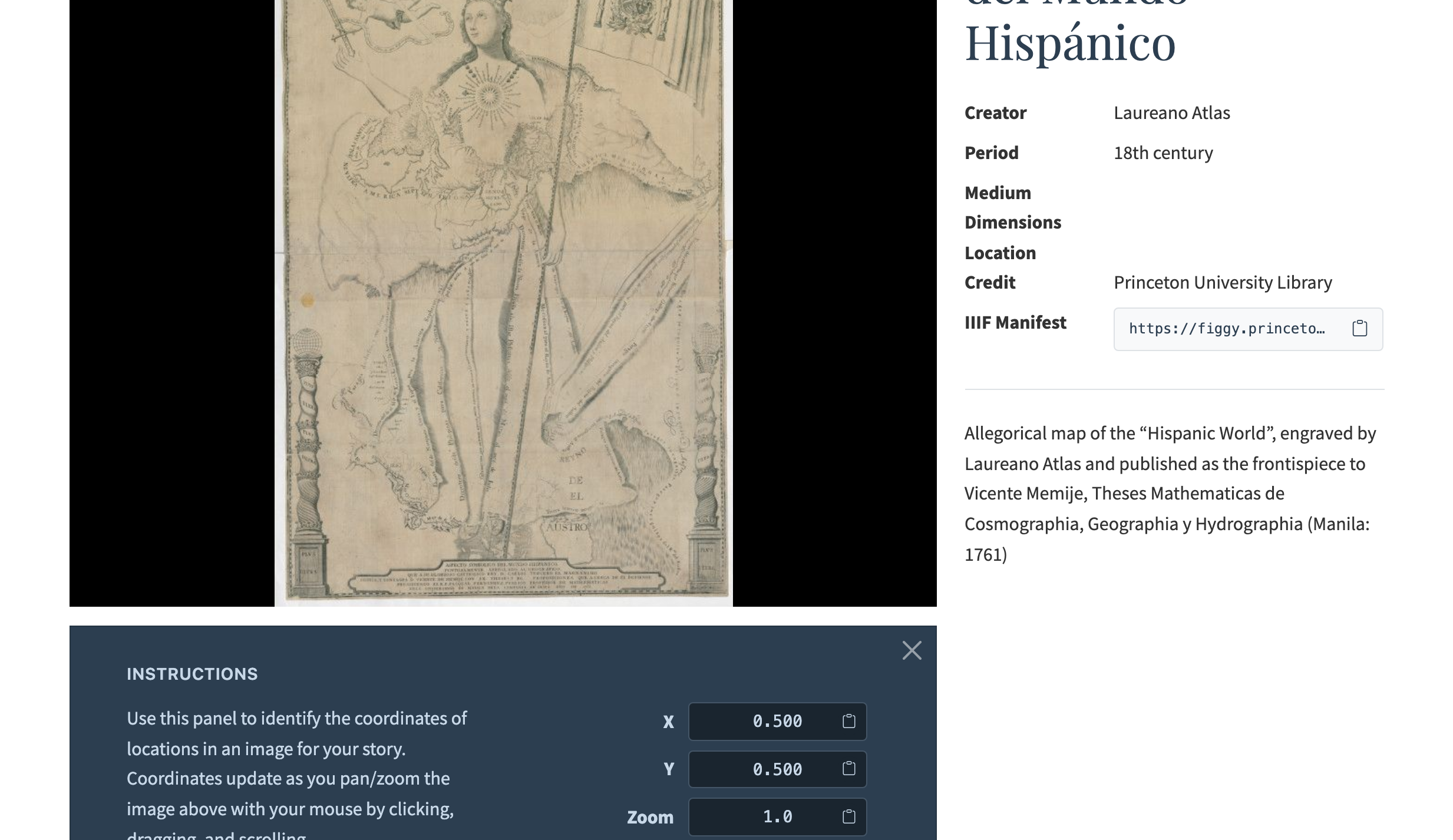
To find coordinates, use the coordinate picker on any object page: zoom and pan to the region you want, then click the Copy buttons to copy the x, y, and zoom values directly into your spreadsheet.
Title cards
Title cards are text-only steps with no associated object. They work well as chapter headings, section breaks, or thematic transitions within a story.
To create a title card, leave the object column empty. The x, y, and zoom columns are ignored. The question field becomes the card heading and answer becomes the subtitle.
step,object,x,y,zoom,question,answer
1,textile-001,0.5,0.3,0.8,What is this textile?,A colonial fragment showing complex weaving patterns.
2,,,,,Chapter 2: Trade Routes,The movement of textiles across the Americas.
3,map-lima,0.5,0.5,1.0,Where were these found?,In the historic center of Lima.
Title cards participate fully in navigation — scroll, keyboard, and deep linking all work as expected. Layer panels are not available on title cards — the layer columns are ignored, like x, y, and zoom.
Section table of contents
If your story uses title cards as chapter headings, you can display a navigable table of contents on the intro card. Enable it by adding show_sections: yes (or mostrar_secciones: si) to the story’s row in project.csv.
When enabled, the intro card scans the story for title cards and lists each one as a clickable link. Clicking a link jumps directly to that section. The intro card also switches to a darker background (the layer 2 panel color) to visually distinguish it.
If your first chapter starts immediately after the intro, create a title card for it too. The TOC only lists title cards that exist in your story CSV — if chapter 1 has no title card, it won’t appear in the table of contents.
See Project Columns for the show_sections column reference.
Back to Start button
When a reader scrolls past the intro card, the “Back to Home” button in the top-left corner switches to “Back to Start”. Clicking it returns to the intro card. On the intro card, the button reverts to “Back to Home” and links to the homepage.
This is automatic — no configuration needed.
Layer panels
Each step can carry up to two layers of additional detail, following the QAI pattern (question, answer, invitation). The question and answer appear in the text card itself. The invitation is the set of panel trigger buttons that let readers open expandable panels for deeper content:
| Layer | Default button text | Purpose |
|---|---|---|
| Layer 1 | “Learn more” | Primary detail panel |
| Layer 2 | “Go deeper” | Secondary detail panel, stacked on top of Layer 1 |
For each layer, add two columns to your story spreadsheet:
- Button text (
layer1_button,layer2_button) — Leave empty for the default, or provide custom text such as “See the technique” or “Read the source” - Content (
layer1_content,layer2_content) — The panel content itself
If a layer has no content, its button is hidden automatically. Layer 2 is accessed from inside Layer 1 — its trigger button is rendered at the bottom of the Layer 1 panel, not on the main text card.
Writing panel content
You can provide panel content in three ways. Choose based on complexity:
The three methods that follow describe authoring in a spreadsheet. In the Compositor, the panel title has its own field, and anything pasted into the Content field — a
---block included — is published as part of the panel’s text, not read as a title.
Method 1: Enter text directly
Type your text directly in the spreadsheet cell. Best for short panels (1–2 paragraphs).
layer1_content
"This fragment shows **advanced weaving techniques** from the colonial period."
You can use basic formatting: **bold**, *italic*, [link text](url), and glossary links ([[term-id]]).
For line breaks within a cell:
- Google Sheets: Press
Ctrl+Enter(Windows/Linux) orOption+Enter(macOS) - CSV files: Use actual newlines inside quoted text
- Alternative: Use HTML
<br>tags
Method 2: Paste markdown text
Paste text written in a plain text editor. This supports the full range of markdown features including headings, widgets (accordion, carousel, tabs), images with size controls, and a custom panel title using YAML frontmatter.
If you copy and paste from Microsoft Word, Google Docs, or similar applications, formatting will not be preserved. Write in markdown syntax instead — see the Markdown Syntax Guide.
Method 3: Reference a markdown file
Point to a markdown file in your repository. Best for complex panels — especially those with widgets or content you want to reuse across steps.
layer1_content
colonial-textiles/step1-layer1.md
Save markdown files in telar-content/texts/stories/. In your spreadsheet, enter just the filename — or if you’ve organized files into subfolders, include the subfolder name.
How Telar decides: If what you enter ends in .md and the file exists, it loads the file. Otherwise, it treats the value as content.
Choosing the right method
| Scenario | Recommended method |
|---|---|
| Short explanation (1–2 paragraphs) | Method 1: Enter directly |
| Panel with custom title or widgets | Method 2: Paste, or Method 3: File reference |
| Content with widgets (accordion, tabs, carousel) | Method 3: File reference |
| Same content used in multiple places | Method 3: File reference |
| Quick edits without leaving the spreadsheet | Method 1 or 2 |
Story markdown files
When using Method 3 (file references), your story markdown files live in telar-content/texts/stories/:
telar-content/texts/stories/
├── colonial-textiles/
│   ├── step1-layer1.md
│   ├── step1-layer2.md
│   ├── step2-layer1.md
│   └── step2-layer2.md
└── trade-routes/
    ├── step1-layer1.md
    └── step1-layer2.md
Organizing files into subfolders by story keeps things manageable as your site grows.
Panel title
Add a custom panel title using YAML frontmatter:
---
title: "Weaving Techniques"
---

The interlocking warp pattern visible here indicates a complex
weaving technique that was common in the colonial period.
If you omit the frontmatter, the panel has no title — the content starts immediately.
This applies to panels written in a spreadsheet or a markdown file. In the Compositor, the panel title has its own field, and a
---block pasted into the Content field is published as part of the panel’s text, not read as a title.
What you can use in panels
Story panels support:
- Standard markdown (headings, bold, italic, links, lists, images)
- Widgets (carousel, tabs, accordion)
- Glossary auto-links (
[[term-id]]) - Images with size controls (see Markdown Syntax Guide)
Multimedia steps
Story steps can reference any object type — not just images. When a step references a video or audio object, the image viewer gives way to the appropriate player.
- Video objects — The video player fills the window behind the text cards with standard playback controls. See Video Objects for supported platforms and setup.
- Audio objects — The audio player fills the window behind the text cards with waveform visualization. See Audio Objects for supported formats and setup.
No additional configuration is needed. Telar detects the object type from your objects spreadsheet and loads the correct player.
Clip control
For video and audio steps, you can specify a start time, end time, and loop setting. Add these columns to your story spreadsheet:
| Column (English) | Column (Spanish) | Description |
|---|---|---|
clip_start |
inicio_clip |
Start time in seconds (e.g. 12.5) |
clip_end |
fin_clip |
End time in seconds |
loop |
bucle |
Loop the clip (true, yes, or sí) |
All three columns are optional. If omitted, the media plays from the beginning without looping.
step,object,clip_start,clip_end,loop,question,answer
1,interview-01,45,78,false,What does she describe?,The weaving technique used in her community.
2,field-recording,0,30,true,What sounds surround the workshop?,The rhythmic clatter of the loom fills the space.
You can also set clip times visually in the Compositor. See Video and Audio in the Compositor for details.
See the CSV Reference: Stories for the full column reference including clip columns.
Alt text
Each step can include an alt_text column with a description of what is visible or audible at that point in the story. This text is used by screen readers and other assistive technologies.
step,object,x,y,zoom,alt_text,question,answer
1,textile-001,0.5,0.3,0.8,Close-up of interlocking warp threads in red and gold,What is this textile?,A colonial fragment showing complex weaving patterns.
Alt text for each step can also be set in the Compositor’s step editor.
Keyboard navigation
Stories support keyboard navigation. Arrow keys, Space, and Page Up/Down scroll through the story, and the magnetic waypoints ensure each keypress lands on the next or previous step.
When a panel is open, keyboard behavior changes: Arrow Up/Down and Page Up/Down scroll the panel content instead of navigating between steps. Space scrolls the panel forward, and Shift+Space scrolls it backward.
Sharing and deep linking
Telar automatically updates the URL in the browser address bar as readers move through a story. The URL encodes the current step and any open panel layer, so you can copy it and share a link that opens directly to a specific point in the story.
The URL fragment uses a compact format:
| Fragment | Meaning |
|---|---|
#s3 |
Step 3 |
#s3l1 |
Step 3 with the first detail panel open |
When someone opens a deep link, the story jumps directly to the encoded step and opens the panel if one is specified. This works with both scroll navigation and button navigation.
The browser back button returns to the previous page — not the previous step. Deep links are designed for sharing positions, not for navigating within a story.
Controlling story display
Hiding stories from the homepage
If you want objects on the homepage but prefer stories to be accessed through navigation or direct links:
story_interface:
  show_on_homepage: false
Stories remain accessible at their URLs — only the homepage cards are hidden.
Hiding step indicators
The “Step 1”, “Step 2” indicators in the top-left corner of the story page can be hidden for a cleaner experience:
story_interface:
  show_story_steps: false
Readers can still navigate through steps normally.
See also
- CSV Reference: Stories — Complete column reference for story spreadsheets
- Objects — Defining the objects used in stories
- Video Objects — Adding video objects from YouTube, Vimeo, and Google Drive
- Audio Objects — Adding self-hosted audio files
- Widgets — Carousel, tabs, and accordion in story panels
- Private Stories — Restricting access to stories
- Configuration — Story interface settings