Rich Content with Markdown
Your site is running and your stories are in the spreadsheet. Now you want richer panels — this guide shows you how to add markdown files for story panels that need more than a few paragraphs of text.
This guide builds on the setup guides. Complete the Quick Start or Manual Setup first if you haven’t already.
When to Add Markdown Files
The spreadsheet handles most Telar exhibitions well. Consider adding markdown files when you need:
- Longer narratives — multi-section panels with headings and structure
- Interactive widgets — accordions, tabbed panels, or image carousels
- Rich media — embedded videos, sized images, or audio
- Reusable content — the same panel text referenced from multiple story steps
- Easier editing — a text editor is more comfortable than a spreadsheet cell for long-form writing
If your panels are mostly 1-2 paragraphs, you probably do not need this workflow. Stay with Google Sheets and come back here if your needs grow.
How It Works
The hybrid approach is simple: your story structure stays in Google Sheets, but instead of writing panel text in a spreadsheet cell, you point to a markdown file in your repository.
Telar auto-detects the difference. If the value in a layer1_content or layer2_content cell ends in .md, Telar loads the file. Otherwise, it treats the value as inline text. You can mix both approaches freely — some steps with inline text, others with file references.
Step 1: Create Your Markdown File
- In your GitHub repository, navigate to
components/texts/stories/ - If your story is
story-1, create a folder calledstory-1/(or any name you like) - Click Add file → Create new file
- Name your file with a
.mdextension (e.g.,step1-techniques.md)- Use hyphens instead of spaces
- Choose a descriptive name — you will see it in your spreadsheet
- Write your content (see Writing Markdown Content below)
- Click Commit changes to save
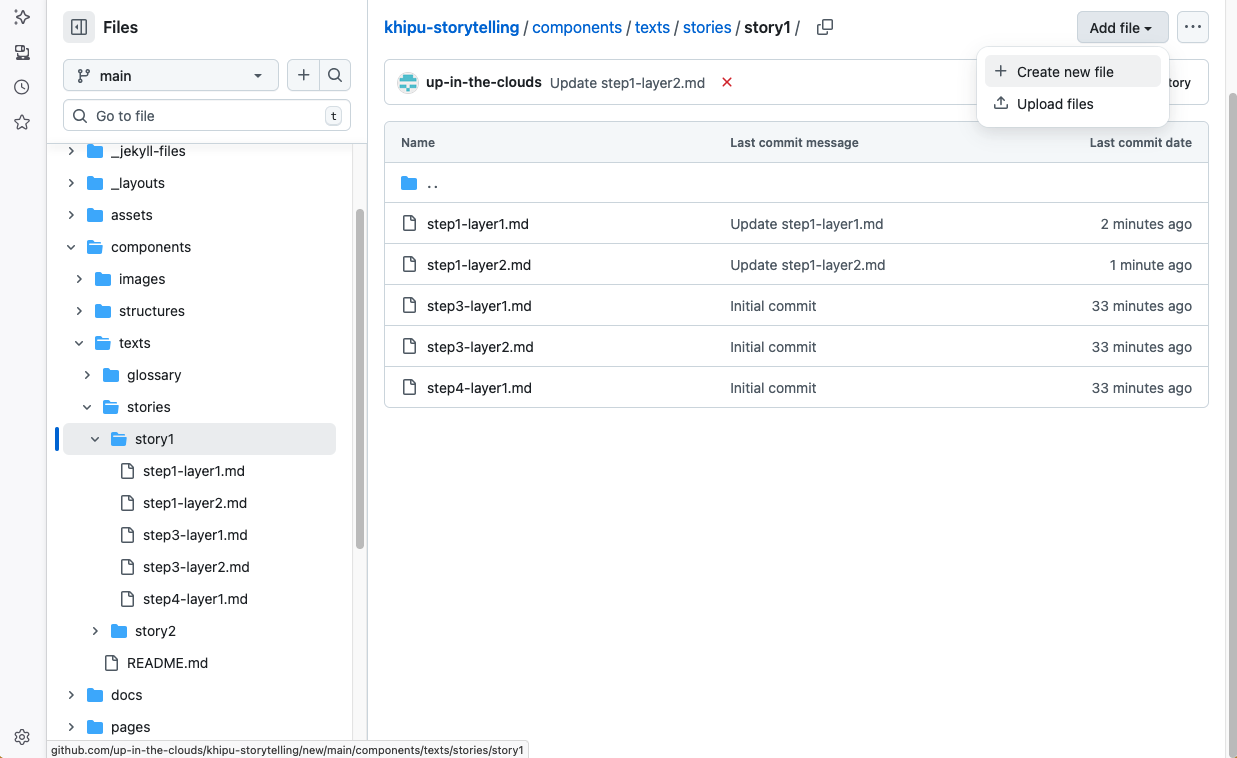
File Organization A common pattern is one folder per story, with files named by step and topic:
components/texts/stories/
  story-1/
    step1-techniques.md
    step2-materials.md
    step3-history.md
  story-2/
    step1-overview.md
But any organization works — Telar only cares about the path you put in the spreadsheet.
Step 2: Link the File from Your Spreadsheet
In your Google Sheet, put the file path in the layer1_content or layer2_content column. The path is relative to components/texts/stories/:
| step | question | layer1_content |
|---|---|---|
| 1 | What is this textile? | story-1/step1-techniques.md |
| 2 | Where was it made? | This textile was made in… |
| 3 | Why does it matter? | story-1/step3-history.md |
Notice how step 2 uses inline text while steps 1 and 3 reference files. You can mix and match freely.
Writing Markdown Content
Basic Structure
A markdown file for a story panel looks like this:
---
title: "Weaving Techniques"
---

The interlocking warp pattern visible here indicates a complex
weaving technique common in the colonial period.

## Technical Details

These textiles were produced on backstrap looms, a technology
that predates European contact by thousands of years.
The title in the frontmatter (the section between --- lines) becomes the panel heading. If you leave it out, Telar uses the button text instead.
Formatting Basics
Markdown uses simple characters for formatting:
| What you type | What it does |
|---|---|
**bold text** |
bold text |
*italic text* |
italic text |
## Heading |
A section heading |
- item |
A bulleted list item |
1. item |
A numbered list item |
[text](url) |
A clickable link |
> quote |
A blockquote |
New to Markdown? Try the CommonMark Tutorial — it takes about 10 minutes and covers everything you need for Telar panels.
What Markdown Files Can Do That Inline Text Cannot
Markdown files support the full range of Telar’s content features:
- Widgets — interactive elements like accordions, tabbed panels, and image carousels. See the Markdown Syntax Reference for the full list.
- Embedded media — videos, audio players, and sized images
- Glossary links — connect terms to your glossary using
[[term-id]]syntax - Complex structure — multiple headings, nested lists, and blockquotes
These features work best in files because they use multi-line syntax that is hard to manage inside a spreadsheet cell.
Editing Markdown Files on GitHub
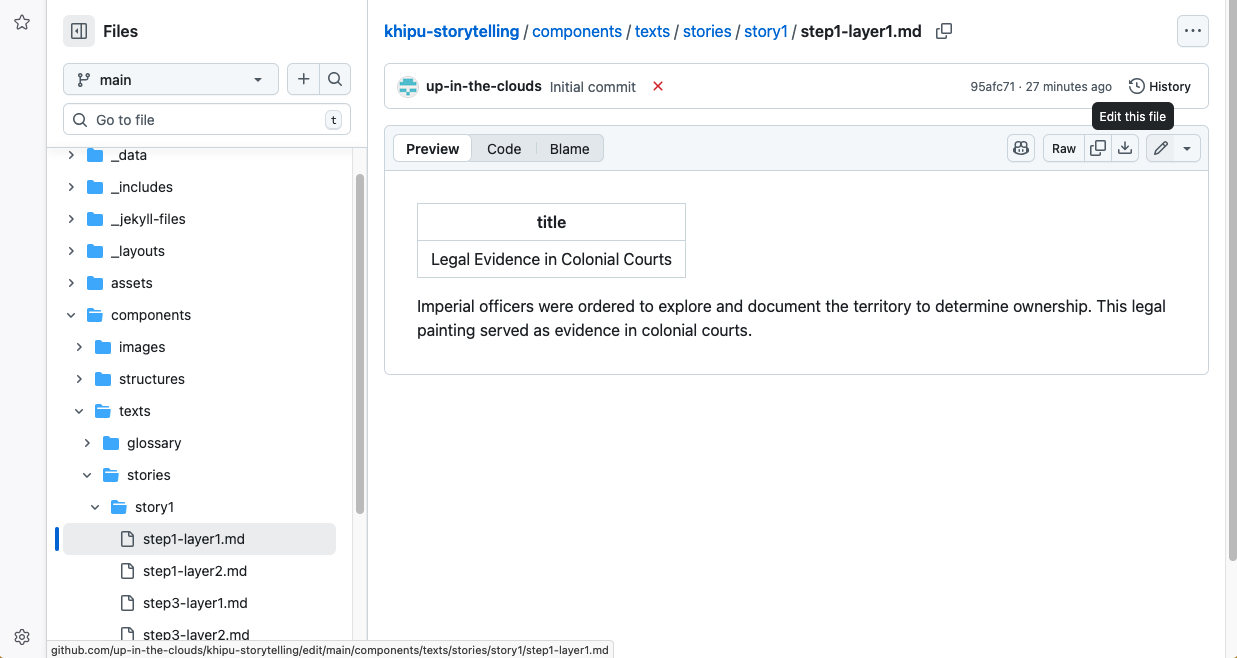
You do not need to install anything to edit markdown files. GitHub has a built-in editor:
- Navigate to the file in your repository
- Click the pencil icon (Edit this file)
- Make your changes
- Click Commit changes to save
GitHub also shows a Preview tab so you can check your formatting before committing.
After editing files, remember to rebuild. Go to Actions → Build and Deploy → Run workflow to see your changes on the live site.
Next Steps
- Markdown Syntax Reference — full formatting guide with widgets and media
- Your Content — how Telar organizes files
- CSV Reference: Project — project CSV columns
- CSV Reference: Objects — objects CSV columns
- CSV Reference: Stories — story step CSV columns
- CSV Reference: Glossary — glossary CSV columns