Objects Gallery
The objects gallery provides a browsable, searchable interface for your collection at /objects/.
Gallery Page
There are two modes, controlled by the browse_and_search setting in your _config.yml:
Browse and Search Mode
When browse_and_search is true (the default), the gallery includes a filter sidebar and a search bar for exploring your collection.
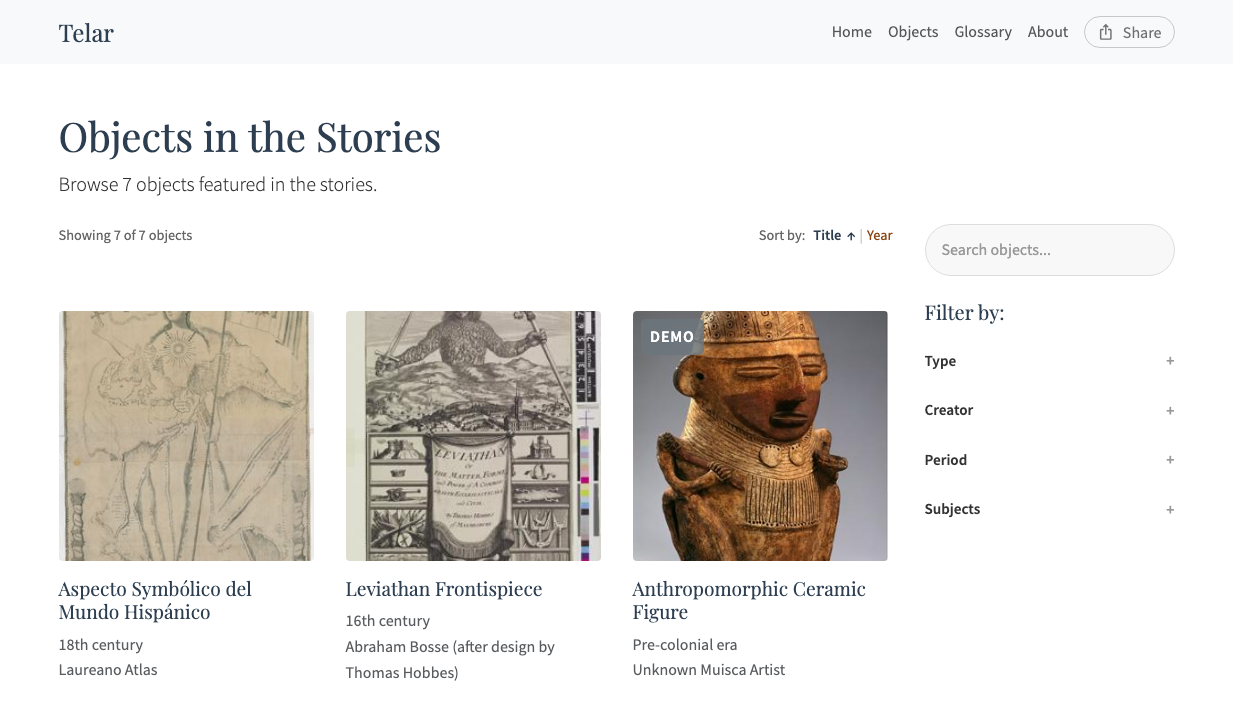
Search uses full-text indexing powered by Lunr.js. It searches across title, creator, description, period, subjects, and object type — with title matches weighted most heavily. Type a few characters and results update instantly.
Filters let you narrow the gallery by four facets:
| Facet | CSV column | Example values |
|---|---|---|
| Type | object_type |
map, textile, photograph, painting |
| Creator | creator |
Unknown, Juan de Cuellar |
| Period | period |
Colonial, 18th century |
| Subjects | subjects |
weaving, cartography, Lima |
Each facet shows the number of matching objects in parentheses. Select multiple values within a facet to broaden results (OR logic), or combine facets to narrow them (AND logic).
Sorting offers two options:
- Title — Alphabetical (A–Z or Z–A)
- Year — Chronological, using the
yearcolumn from your CSV
Active filters and search terms appear as removable chips above the grid. Click Clear all to reset.
Simple Grid Mode
When browse_and_search is false, the gallery shows a plain grid of object cards without filtering or search.
Populating Gallery Metadata
For the best gallery experience, fill in these columns in your objects.csv:
object_typefor every object — powers the Type filtersubjectswith 2–4 comma-separated terms — powers the Subjects filteryear— enables chronological sortingdescription— indexed for full-text searchcreatorandperiod— power their respective filters
Without these columns, the gallery still works but filtering and sorting options are limited.
Featured Objects on the Homepage
You can showcase a selection of objects on your homepage by marking them as featured:
- In
objects.csv, setfeaturedtoyesfor the objects you want to highlight - In
_config.yml, setshow_sample_on_homepage: trueundercollection_interface
collection_interface:
  show_sample_on_homepage: true
  featured_count: 4
The homepage displays up to featured_count objects (default: 4). If you mark fewer objects as featured than the count allows, the remaining slots are filled randomly from your collection.
Homepage Objects Link
The “View the objects” link on the homepage is controlled separately:
collection_interface:
  show_link_on_homepage: true  # Show or hide the link to /objects/
Even when the link is hidden, the gallery page remains accessible through the navigation menu.
Configuration
All gallery settings live under collection_interface in _config.yml:
collection_interface:
  browse_and_search: true       # Filter sidebar and search bar
  show_link_on_homepage: true   # "View the objects" link on homepage
  show_sample_on_homepage: true # Featured objects grid on homepage
  featured_count: 4             # Number of homepage objects
See Configuration Reference for full details on each setting.
See Also
- Objects — Defining objects and object pages
- Object Columns — Complete column reference for objects.csv
- Configuration Reference — Collection interface settings