Glossary
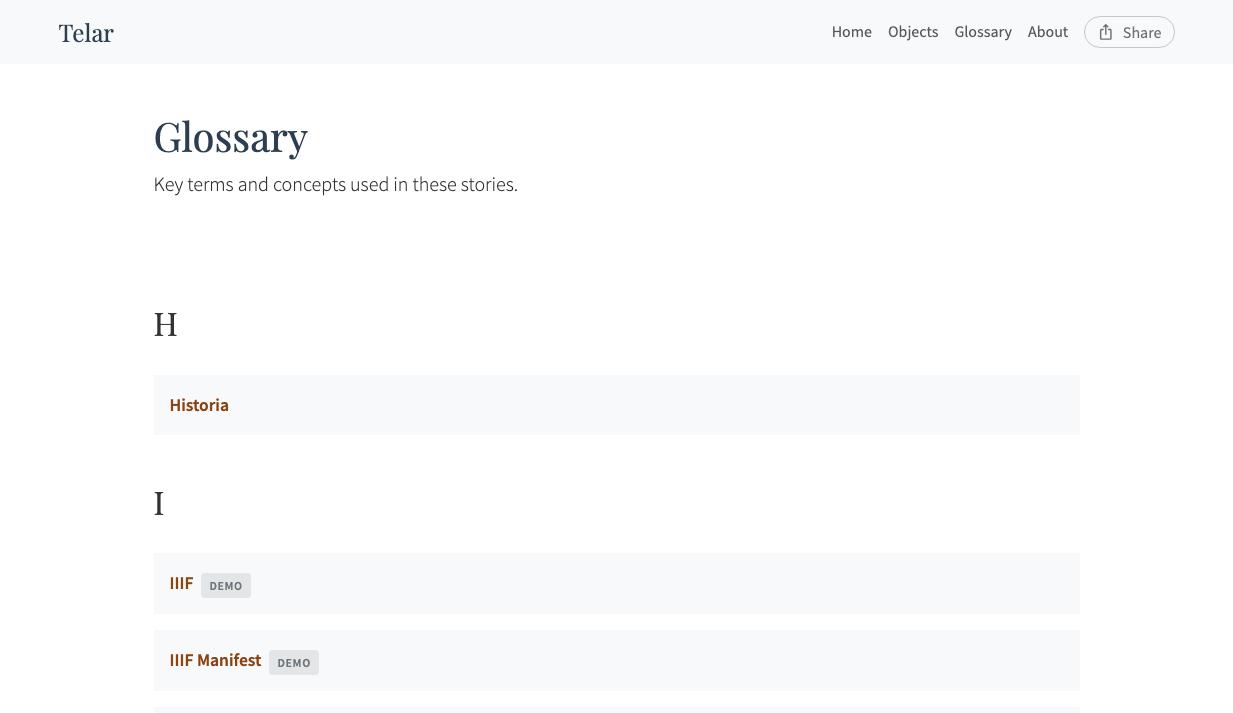
The glossary lets you define terms that viewers can look up without leaving a story. When a viewer clicks a glossary link, the definition appears in a slide-over panel.
Creating a Glossary
There are two ways to define glossary terms. The CSV format (new in v0.8.0) is recommended for most projects.
CSV Format (Recommended)
Add a glossary.csv file to components/structures/:
term_id,title,definition,related_terms
loom,Loom,A device used to weave cloth and tapestry.,warp
warp,Warp,"The set of lengthwise yarns on a loom, through which the weft is woven.",loom
encomienda,Encomienda,"A system of labor in colonial Spanish America, granting colonists authority over indigenous workers.",
Each row defines one term:
term_id— Unique identifier used in links (lowercase, hyphens recommended)title— Display name shown in the glossary paneldefinition— The definition text (supports basic markdown)related_terms— Comma-separated list of otherterm_idvalues for cross-referencing
The CSV format works with Google Sheets — the glossary tab is fetched automatically like your other CSVs. Column names can be in English or Spanish (see CSV Reference: Glossary for aliases).
Markdown Format (Legacy)
Individual markdown files in components/texts/glossary/:
---
term_id: colonial-period
title: "Colonial Period"
related_terms: encomienda,viceroyalty
---

The Colonial Period in the Americas began with the arrival of
European colonizers in the late 15th century...
Each file defines one term. The body of the file is the definition.
If both a CSV glossary and markdown glossary files exist, Telar uses the CSV and ignores the markdown files (with a build warning).
Linking to Glossary Terms
Link to glossary terms from story panels using double-bracket syntax:
Shorthand
Uses the term’s title as the link text:
The [[loom]] was central to textile production.
Renders as: The Loom was central to textile production.
Custom Display Text
Use a pipe separator to specify different link text:
The [[loom|weaving device]] was central to textile production.
Renders as: The weaving device was central to textile production.
Where Links Work
Glossary auto-links work in:
- Story panel content (all three methods: direct text, pasted markdown, file references)
- Custom pages
If a term_id is not found in the glossary, a warning icon and error message appear in the build output and in the story panel.
Viewer Experience
When a viewer clicks a glossary link:
- A slide-over panel appears from the side of the screen
- The panel shows the term’s title and definition
- Related terms appear as additional links at the bottom
- The viewer can navigate between related terms without closing the panel
- Clicking outside the panel or pressing the close button dismisses it
The viewer stays on the current story step throughout — glossary lookups don’t interrupt the narrative flow.
Tips
- Keep definitions concise — Viewers are reading them mid-story. A sentence or two is ideal; save extended explanations for story panels.
- Use related terms to build a network of cross-references. This helps viewers explore connected concepts.
- Prefix demo terms with
demo-(e.g.,demo-loom) to tag them as demo content. - Test your links by building the site and checking for glossary warnings in the build output.
See Also
- CSV Reference: Glossary — Complete glossary CSV column reference and aliases
- Stories & Panels — Where glossary links are used
- Markdown Syntax Guide — Formatting for definitions