Step 4: Review and Refine
Browse through your exhibition and check for:
- Warning messages on the homepage (these point to configuration issues)
- Correct images appearing for each story step
- Text displaying as expected
Set Your Image Coordinates
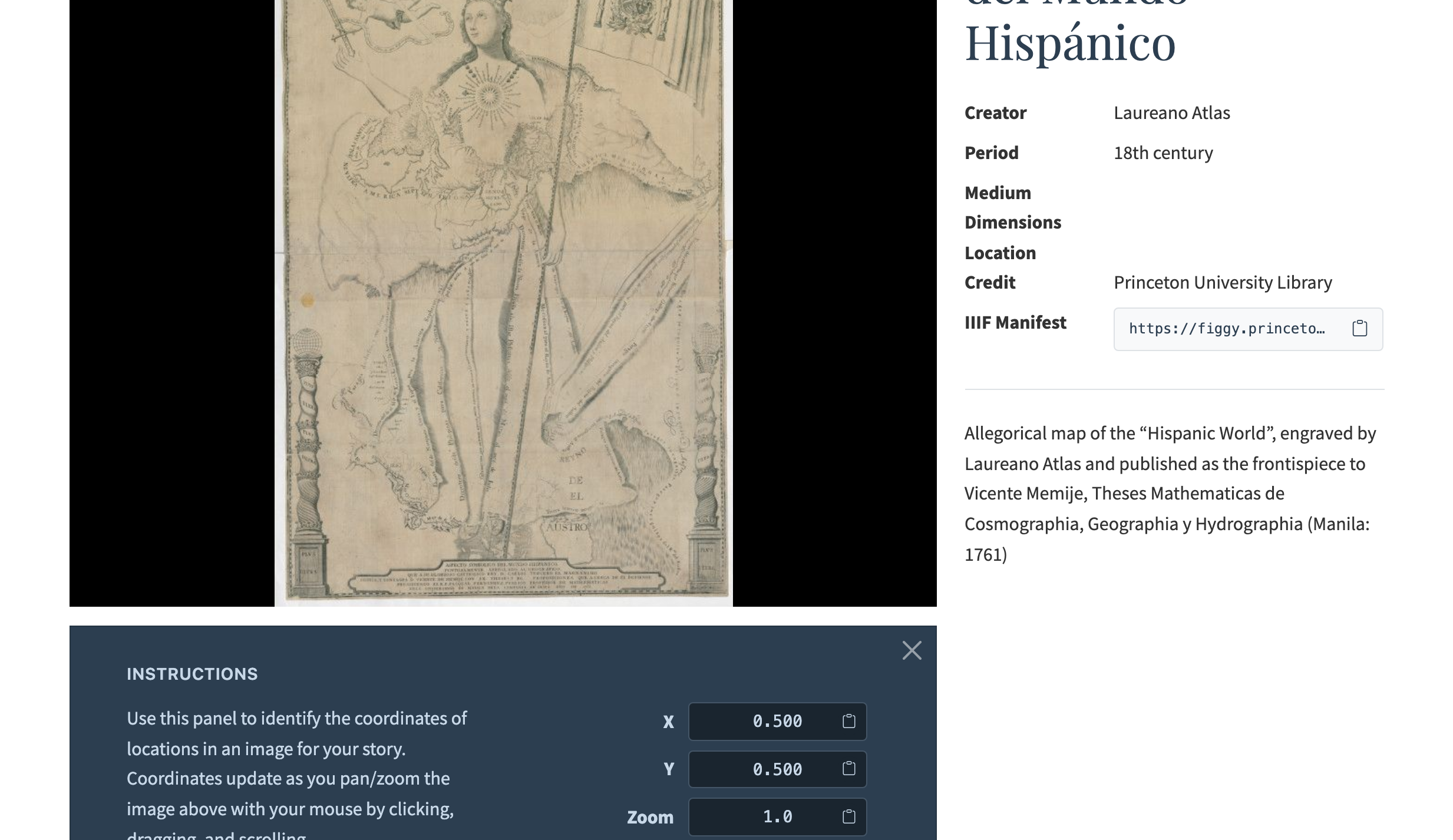
The placeholder coordinates (0.5, 0.5, 1.0) show the center of each image. To focus on specific details:
- Navigate to any object page on your site
- Click Identify coordinates below the image viewer
- Pan and zoom to find the perfect view for each story step
- Copy the X, Y, and Zoom values
- Paste them into your spreadsheet
- Trigger a rebuild to see the changes
Make Stories Private (Optional)
If you want to restrict access to a story — for classroom use, drafts, or work in progress:
- In the project tab, set the
protectedcolumn toyesfor that story -
In your repository’s
_config.yml, add astory_key:story_key: "your-secret-key" - Share the key with your viewers, or send them a link with
?key=your-secret-keyappended
See Private Stories for details.
Keep Building
Once the basics are in place, you can:
- Add more stories (create new story tabs in your spreadsheet)
- Add a glossary of terms (use the glossary tab in your spreadsheet)
- Customize your homepage (edit
index.mdin your repository) - Browse and search your objects collection (enabled by default)
When your panels need more than a few paragraphs — widgets, rich formatting, or reusable content — see Rich Content for how to add markdown files.
Next Steps
- Rich Content — Enhance panels with markdown files and widgets
- Your Content — How Telar organizes your materials
- Themes — Customizing your site’s look and feel
- Self-Hosted Images — Upload and process your own images
- External IIIF Images — Use images from museums and libraries