Use an IIIF object in a story
Connect an image held elsewhere to your exhibition, choose it for a story step and capture the view you want visitors to see.
If the khipu is already in your collection, go straight to Use it in a step.
Three separate actions: adding an object makes it available in the Compositor. Choosing it in a step brings it into your story. Publishing sends your changes to the repository so your site can rebuild.
1. Open the import dialog
Open Objects, choose + Add object, then select IIIF manifest.
An IIIF manifest describes an object and tells the viewer where to load its images. Use the manifest address supplied by the collection.
2. Fetch the manifest
Paste this example into IIIF manifest URL, then choose Fetch manifest.
https://juancobo.com/138la/iiif/khipu/p7/manifest.json
Wait for the preview to load. This example is labelled “Haptic khipu — Taking a sample from the khipu for radio-carbon dating, Spring 2025”.
3. Review the object
Review Title, Creator, Year, Description, Source and Credit. The provider may supply only some of them. Retain the source and credit information and fill any gaps from reliable cataloguing information.
Scroll within the dialog to review the remaining fields.
The interface language does not translate the metadata supplied by a manifest. You can review the wording for your exhibition.
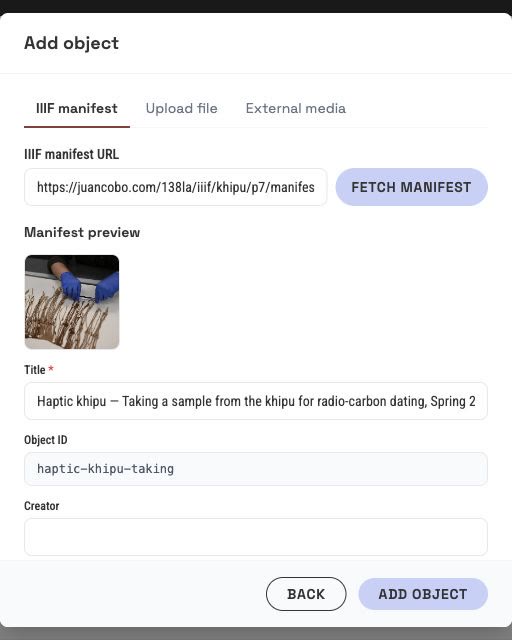
Paste the manifest, fetch it, then check the returned khipu and metadata. Adding the object is a separate action.
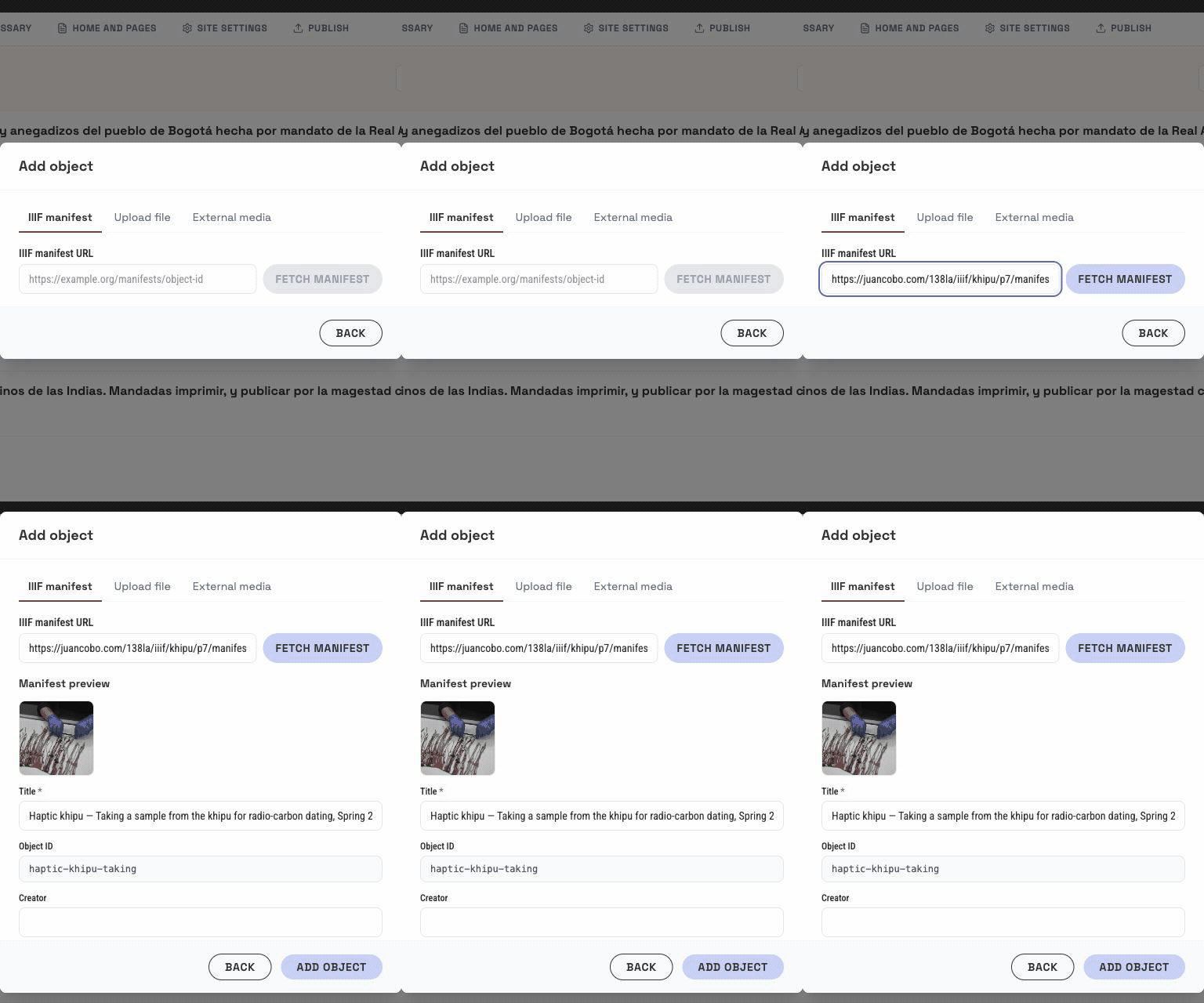
Choose Add object. The object should appear in your collection. Open its record to check the image and add a Description for accessibility.
4. Use it in a step
- Open Stories and choose the story you want to edit.
- Choose + Add step.
- If the new-step dialog offers to keep the previous object, choose Choose another object.
- Select the khipu from the object picker. You can also use Change object on an existing step.
The step should now show the imported image. Write a question and a short answer. For this exercise, you could use:
Question: Which activity does this image document?
Answer: Sampling a khipu for radiocarbon dating in spring 2025.
These sentences describe this example. Your own story should develop the questions you want your visitors to explore.
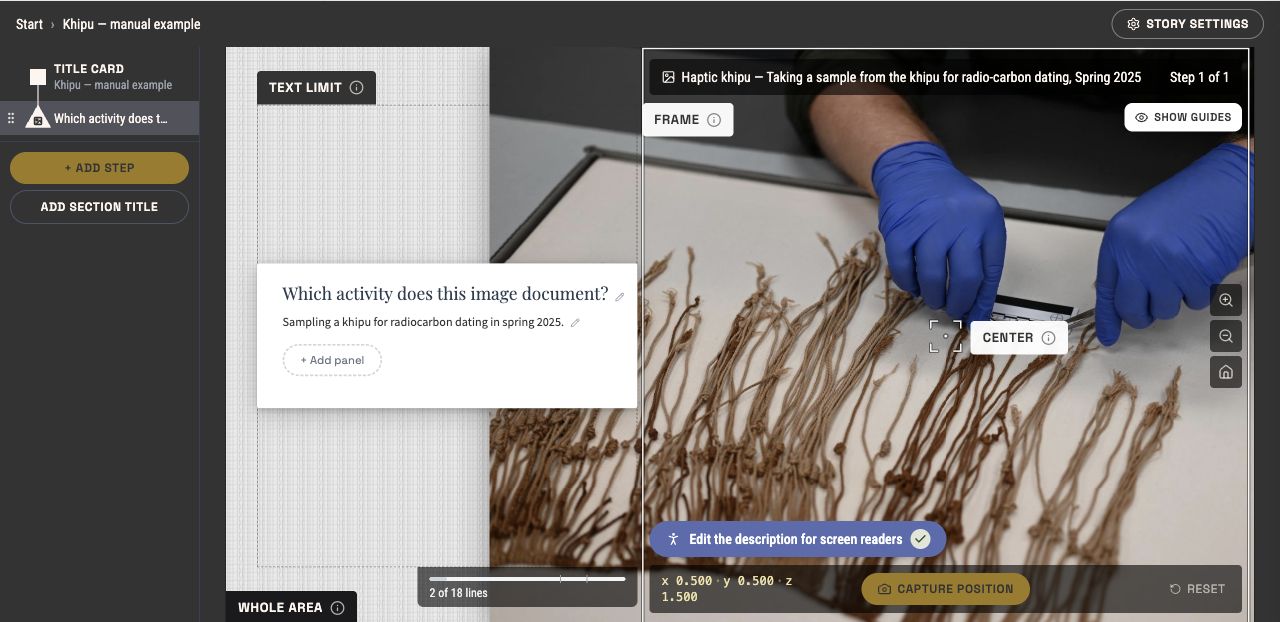
The outline is on the left, the step text in the centre and the object on the right. Capture position records the view for the selected step.
5. Capture the framing
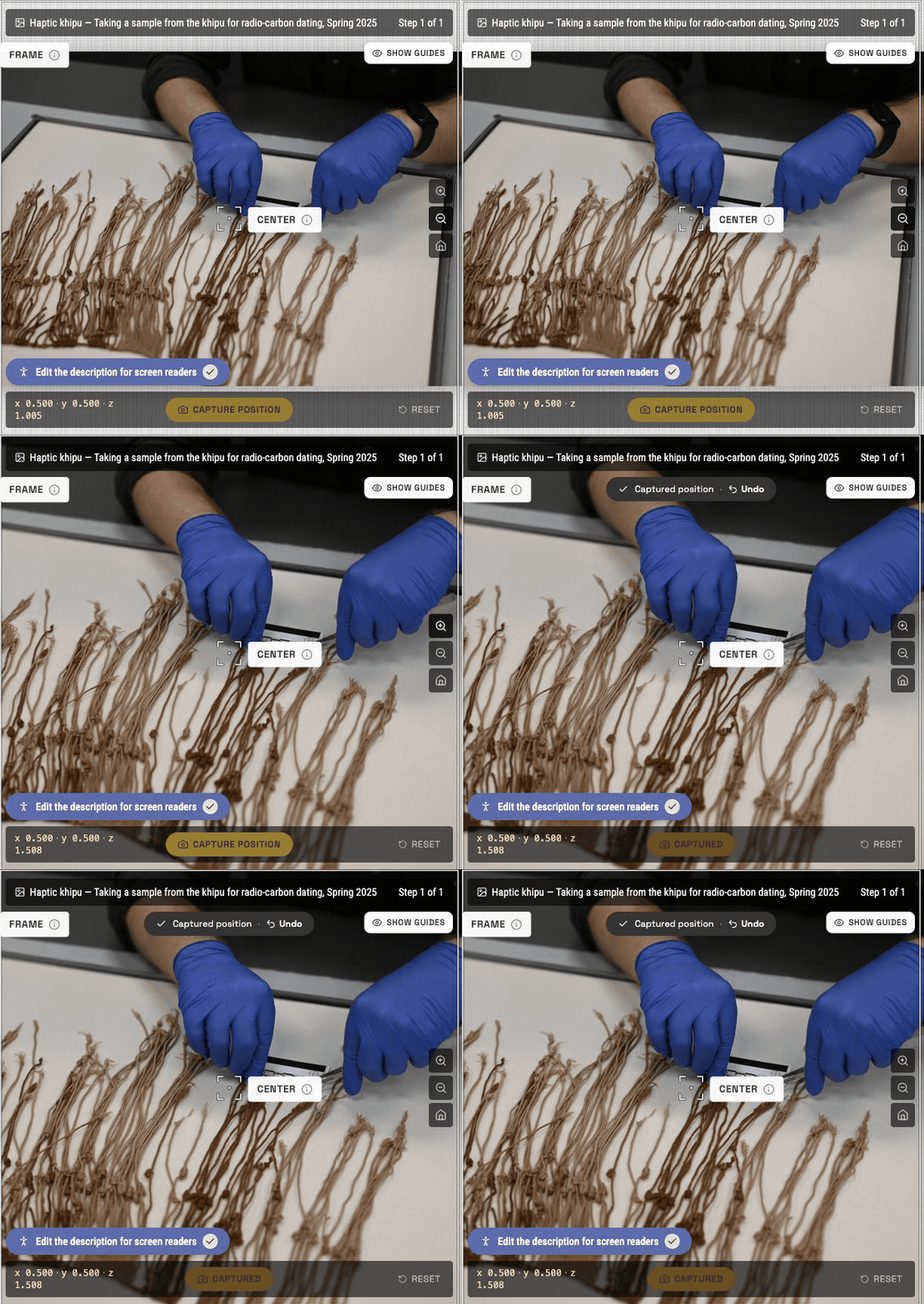
- Pan and zoom to the detail you want to show.
- Use the framing guides to understand the area the step will preserve.
- Choose Capture position.
- Check that the control confirms Captured.
Capture after framing. Moving the viewer lets you explore the object. Capture position records the view for this step. Capture it again if you change the framing you want to preserve.
Move to another step and return. Check that the saved framing is the one you intended.
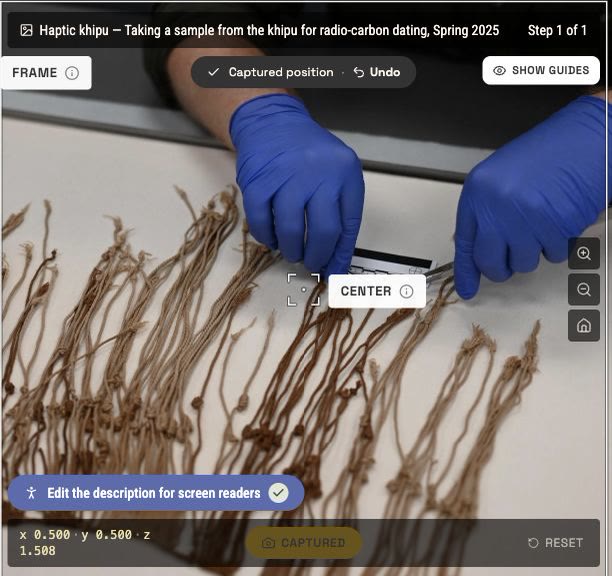
Adjust the view, choose Capture position and look for Captured. The same khipu is shown throughout.
6. Add context
On the step card, choose + Add panel. If the step already has a panel, open it using its panel button. Use the editing icons for the panel title and text to write your content.
For example, explain how the image supports your question and link to the object’s source.
Keep the brief answer readable on the step card. Use panels for the detail that helps visitors understand the evidence.
7. Publish and check
Open Publish and review the changes. Resolve any errors that block publication and review the warnings before publishing.
Once the site build completes, open the published story and check:
- The correct object appears in the new step.
- Its framing shows the detail you captured.
- The question, answer and panel read correctly.
- The object’s source, credit and accessibility description are appropriate.
If something goes wrong
The manifest does not load. Check the complete address and try opening it in a browser. The address should return an IIIF manifest. A catalogue-page URL or an image-file URL is a different resource.
Metadata is missing. Review the collection’s catalogue and complete the relevant fields. Imported metadata depends on what the provider supplies.
The image works in Objects but is absent from the story. Open the step and check its selected object.
The published framing is different. Reframe the step, choose Capture position, then publish and check the completed build.
The live site still shows the previous content. Check the publishing and build status. Editing the draft and publishing it are separate operations.