Arrange the homepage and pages
Open Home and Pages to edit the exhibition’s introduction, arrange its menu and create supporting pages.
Edit the homepage
Select the pinned Home entry. Edit the site title and description, welcome text, and headings or introductions for the stories and objects sections.
These fields describe the whole exhibition. Explain what visitors can explore and give them a clear starting point. Keep the longer introduction to an individual story inside that story.
Arrange story cards in the order you want readers to encounter them. Story drafts remain excluded from publication. The collection’s display settings live in Site settings, while the objects’ featured status and metadata are edited in Objects.
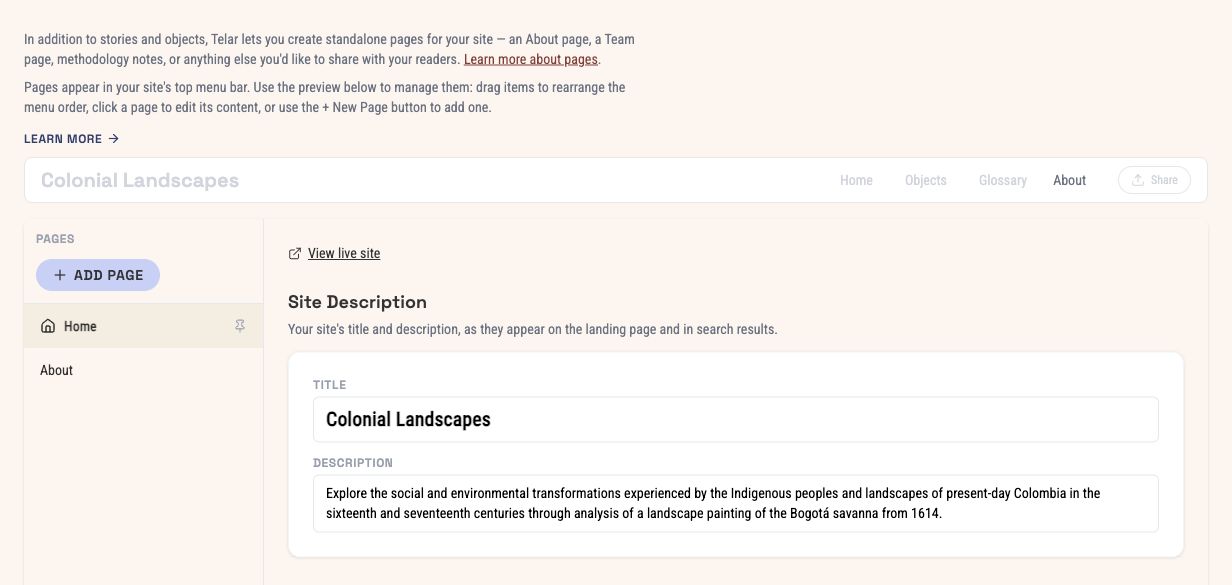
Choose the pinned Home entry to edit the introduction. Its editing position is separate from the order of the published menu.
Add a supporting page
- Choose Add page.
- Add a title, such as About, Team or Methodology.
- Write the page’s content using the text editor.
- Check its URL and the menu preview.
A page is useful for information that should remain available outside a story: credits, contributors, research methods or acknowledgements. It does not have the sequence of framed steps that a story has.
If the Compositor finds existing pages in the repository, it offers to import them. Review the imported content before replacing or duplicating it.
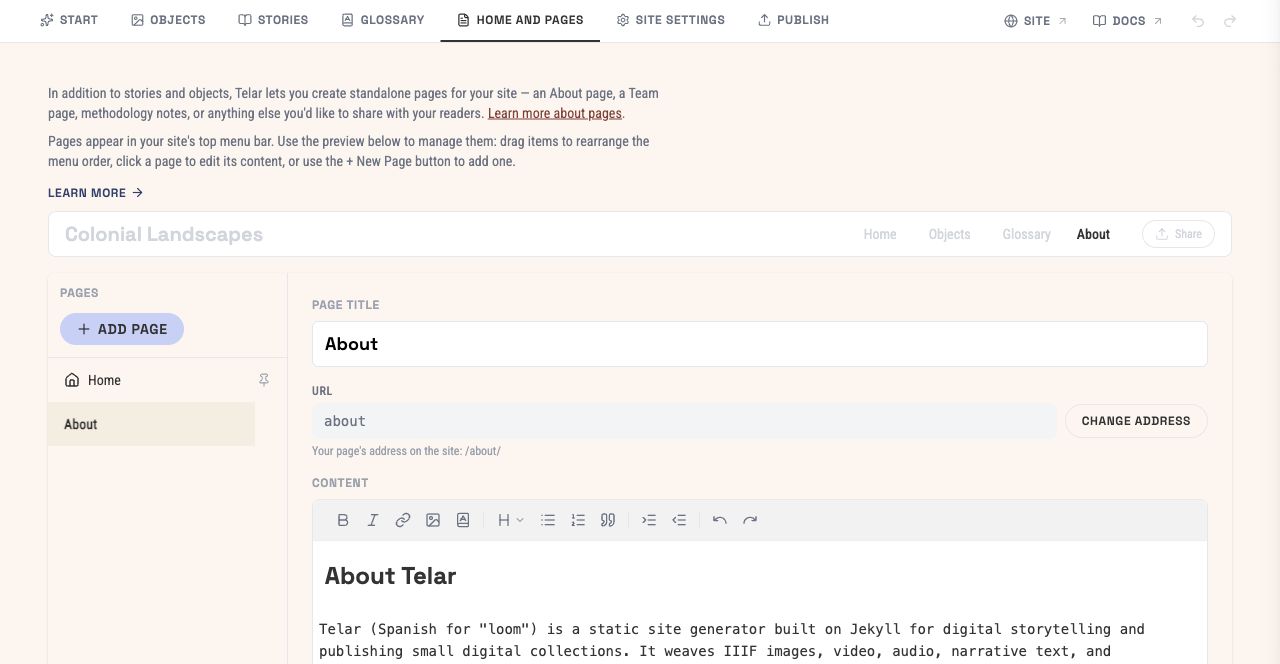
A supporting page has its own title, address and content. The menu preview above shows how readers will find it.
Arrange the menu
Use the navigation preview to reorder the menu items and choose the page you want to edit. Keep destination names short and recognisable.
The pinned Home entry in the editing sidebar does not force Home to be first in the published menu. Check the menu preview itself to confirm the public order.
Check page addresses
A page’s URL must be unique and cannot use an address reserved by the site. The Compositor explains collisions beside the field.
Changing an address affects the next publication. Existing links to the old address will no longer reach the page. Update links in your content and any places where you have shared it.
Review the complete route
After publishing, begin at the homepage, open each menu item and check that the intended title, content and story order appear. A change saved in the editor is not yet a change to the public site.