Adjust appearance and site settings
Use Site settings for the exhibition’s identity, language, theme, display options and hosting address. The page distinguishes settings that every editor can change from those reserved for the convenor.
Set the identity and language
Review the site title, description, author and contact email. The title and description should agree with the homepage introduction.
The site’s language controls interface text supplied by Telar. Your account’s language controls the Compositor interface. Changing either setting does not translate the content you wrote.
Choose a theme from those available in your repository. The convenor can refresh the list when themes have changed on GitHub. Preview the result with your actual text and images.
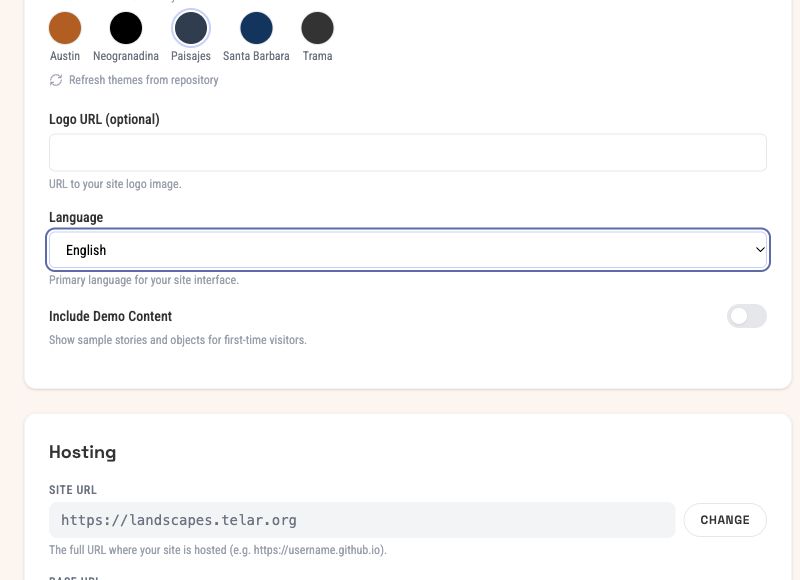
These settings affect the exhibition. The language here controls the site's interface; it does not translate your written content.
Decide what the homepage shows
Story settings control story visibility on the homepage, the step indicator and object credits. Collection settings control browsing, the collection link, featured objects and whether objects or stories appear first.
Use a story-led homepage when a guided route is the main invitation. Use collection mode when visitors should first explore a set of objects. Check the resulting homepage after publication.
Understand the convenor’s settings
Only the convenor can change the hosting URL and base path, the story key, Google Sheets integration and inclusion of demo content. Other members can change editorial settings such as titles, theme and display options.
- Site URL is the domain, such as
https://example.github.io. - Base URL is the path, such as
/my-exhibition; leave it empty for a domain-root site. - The story key is used for stories marked private. It is separate from the draft flag.
- Demo content is sample material; turn it off when it no longer belongs in your exhibition.
An address change affects links throughout the site. Confirm the address and hosting arrangement before publishing it.
Choose one content source
If Google Sheets remains enabled, a build can fetch the sheet and replace the objects and stories you edited visually. Read the notice in settings. The Compositor’s object-saving workflow switches the project to Compositor-managed content.
Before switching methods, review the latest sheet content and the unpublished editor changes. The Compositor does not write your edits back to Google Sheets.
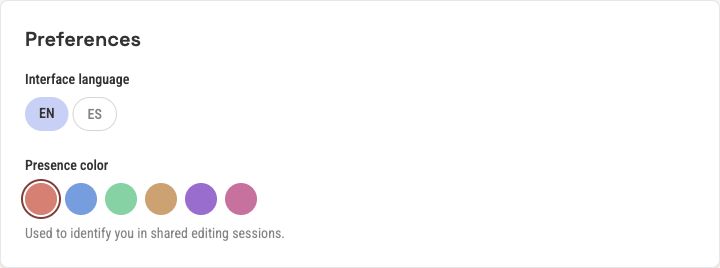
Account → Preferences changes the Compositor's interface language. The exhibition's language is a separate site setting.
Save and publish
Use Save Changes on the settings page and wait for confirmation. Then review the publication separately. Check the live homepage, menu and a story after the build completes.
See publishing for the complete process.