Create and link glossary entries
Use the glossary for definitions and context that readers may need in more than one place. A term has an ID used in links, a title readers see, a kind and a definition.
Add an entry
- Open Glossary in the main navigation.
- If you are the site’s convenor, choose + New Term.
- Write a useful title and a definition that can stand on its own.
- Choose the kind: key term, primary source, person or entity, or place.
- Check How readers see this.
The convenor adds and deletes entries and changes their IDs. Other team members can work on the content of existing entries. If the creation control is absent, ask your convenor to add the term.
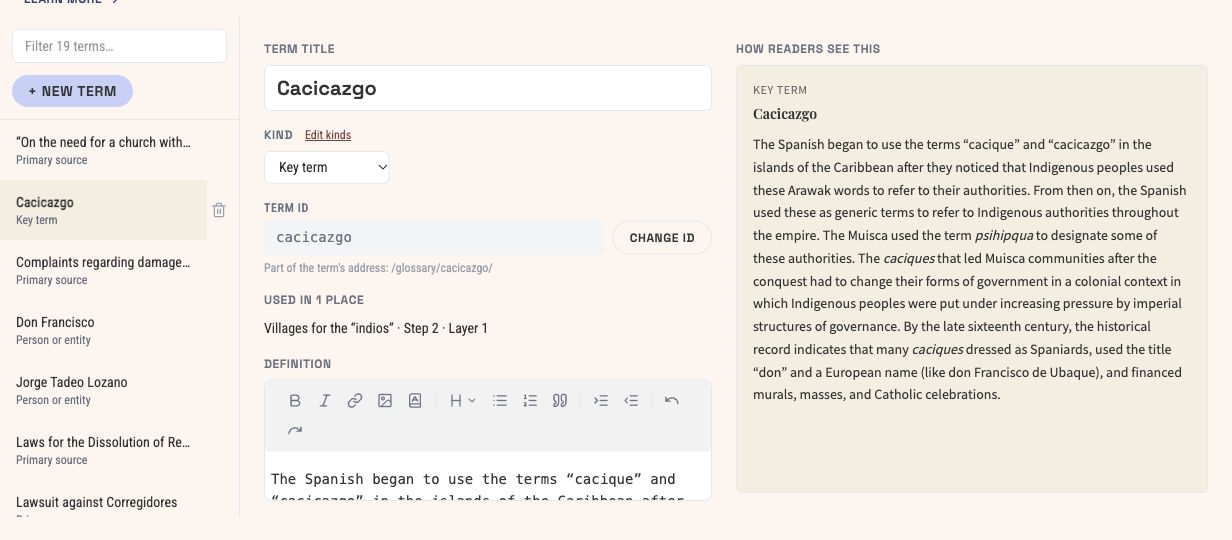
The ID connects links to this entry. Edit the definition in the middle and check the reader preview on the right.
Link it from a story
In a panel’s text editor, use Insert glossary link and search for the term. Choose custom link text when the sentence needs a different form.
You can also write the link directly:
[[khipu]]
[[khipu|knotted cords]]
The text before the vertical bar is the term ID, not its display title. Use the ID of the entry you created. Check the link in the preview and again on the published site.
Review where a term is used
The Used in list shows references in stories, pages and other terms. Open a reference to inspect its context before changing a definition that several passages rely on.
A short definition works best when it answers the reader’s immediate question. Place a longer discussion of one source in that step’s panel and link to the glossary where shared context is needed.
Change an ID or a kind carefully
The convenor can change a term ID. The Compositor updates its internal links, but the public address changes on the next publication. Links shared outside the project will still point to the old address.
Edit kinds lets the convenor add site-specific categories with an ID, a label shown in the panel and a heading for the glossary page. These labels should be in the exhibition’s language.
Deleting an entry leaves references to it unresolved. Use Used in first and replace or remove the links before publishing.
Check your work: open the term from a story panel, verify the displayed wording and return to the same step. Then arrange the homepage and pages.